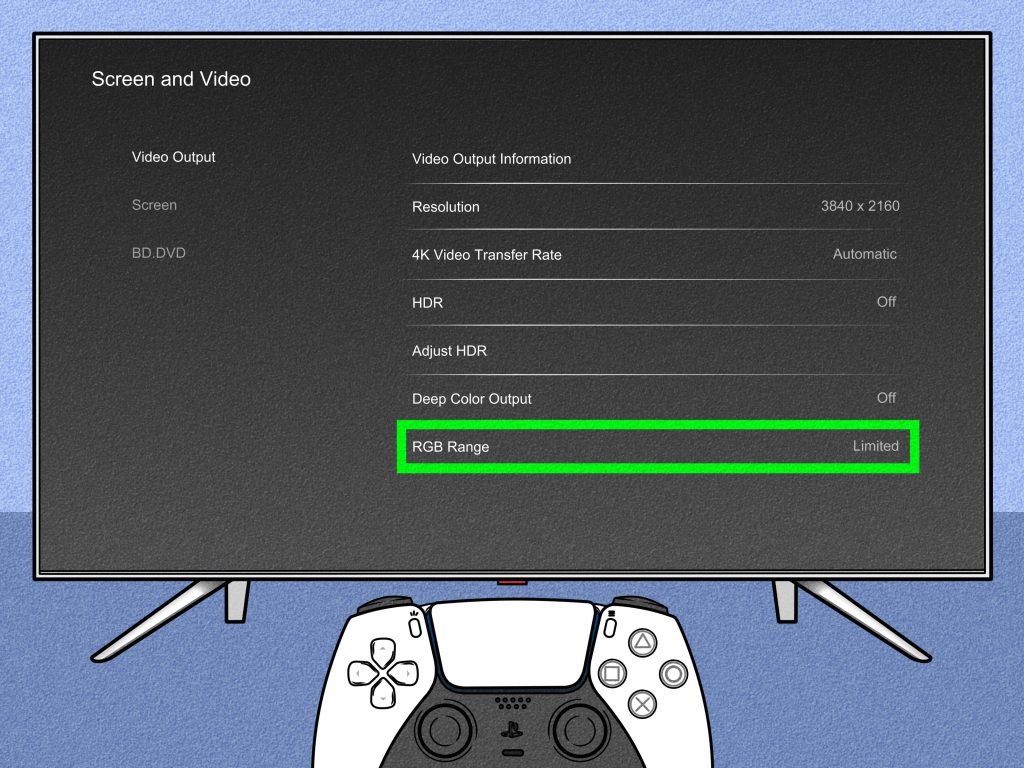
Gaming on a TV can be incredible. But, the right settings matter a lot.
The picture quality, responsiveness, and overall experience can vary greatly based on your TV settings. Incorrect settings can lead to lag, poor visuals, and less enjoyment. To get the most out of your gaming, you need to adjust your TV for the best performance.
This means tweaking brightness, contrast, and color, among other settings. Each game might need slightly different tweaks, but there are general tips that can help. In this guide, we will explore the best TV settings for video games, ensuring you enjoy your gaming sessions to the fullest.
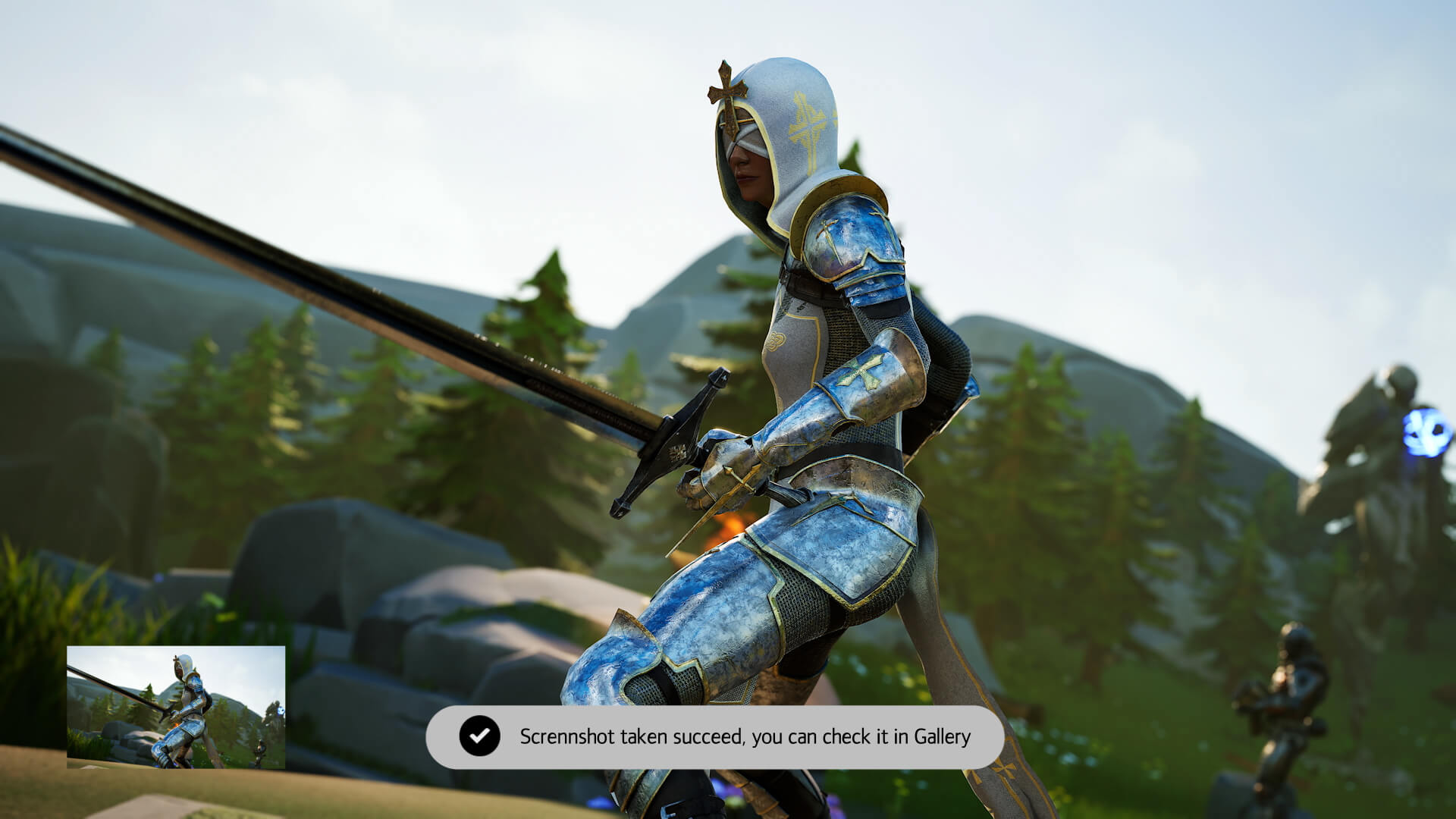
Credit: www.tcl.com
Introduction To Tv Settings For Gaming
Gaming is more fun with the right TV settings. Your TV can impact your game. Adjusting TV settings can improve your gaming experience. This guide explains why TV settings matter and their impact on gaming.
Why Tv Settings Matter
TV settings are crucial for clear and smooth gameplay. The right settings can reduce lag and improve visuals. Adjusting settings can make your game look better and run smoother. Here are some key settings to consider:
- Brightness: Ensures you can see the game’s details.
- Contrast: Enhances the difference between dark and light areas.
- Color: Makes the game look more vibrant and realistic.
- Sharpness: Improves the clarity of the images.
- Refresh Rate: Reduces motion blur for smoother gameplay.
Impact On Gaming Experience
The right settings can change your gaming experience. A higher refresh rate provides smoother motion. Low input lag ensures quick response times. Proper brightness and contrast settings can help you see enemies better. Here’s a table summarizing key settings and their impact:
| Setting | Impact |
|---|---|
| Brightness | Improves visibility in dark areas. |
| Contrast | Enhances image depth and detail. |
| Color | Makes the game more immersive. |
| Sharpness | Clarifies fine details and edges. |
| Refresh Rate | Reduces motion blur and smooths action scenes. |
Adjusting these settings can lead to a better gaming experience. Experiment with your settings to find what works best for you.
Choosing The Right Tv
Finding the best TV for video games can greatly improve your gaming experience. You need to consider several factors to make an informed choice. The right TV will enhance visuals, reduce lag, and provide an immersive experience.
Screen Size And Resolution
The screen size and resolution are crucial for a good gaming experience. A larger screen can make your game more immersive. However, the right size depends on your room and seating distance. Use the table below to guide your choice:
| Screen Size | Optimal Viewing Distance |
|---|---|
| 32-40 inches | 4-6 feet |
| 42-50 inches | 6-8 feet |
| 55-65 inches | 8-10 feet |
| 70+ inches | 10+ feet |
Resolution is also important. 4K resolution is ideal for modern gaming consoles. It provides sharp and detailed images. If budget is a concern, 1080p resolution is still a good option for gaming.
Refresh Rate And Response Time
For smooth gaming, the refresh rate and response time of your TV are key. The refresh rate is the number of times the TV updates its image per second. For gaming, a refresh rate of 60Hz is the minimum. 120Hz or higher is better for fast-paced games.
The response time measures how quickly pixels change from one color to another. A lower response time means less motion blur. Look for TVs with a response time of 5ms or lower for the best performance.
- 60Hz: Standard gaming experience
- 120Hz: Enhanced smoothness for action games
- 5ms or lower response time: Clearer, sharper images
Choosing the right TV settings is crucial for an immersive gaming experience. Pay attention to screen size, resolution, refresh rate, and response time.
Optimizing Picture Settings
Optimizing picture settings on your TV can greatly enhance your gaming experience. The right settings can make games look more vibrant and detailed. Adjusting brightness, contrast, and color settings can lead to clearer visuals. This guide will help you find the best settings for an immersive gaming experience.
Brightness And Contrast
Start with brightness. Set it too high, and the screen may look washed out. Too low, and you’ll miss details in dark areas. Aim for a balance that shows details in both dark and bright scenes.
Next, adjust the contrast. High contrast makes bright areas pop, but can lose detail. Low contrast can make the image look flat. Find a middle ground where bright areas are clear but not overly bright.
Color Accuracy And Saturation
Color accuracy is crucial for a realistic gaming experience. Use your TV’s settings to match the colors as closely as possible to real life. Many TVs have presets like “Game” or “Cinema.” These can be a good start.
Adjust the saturation next. Too much saturation can make colors look unnatural. Too little can make them dull. Aim for vibrant but realistic colors.
Experiment with these settings. Each game may require slight adjustments. Your goal is a balanced, clear, and vibrant picture.
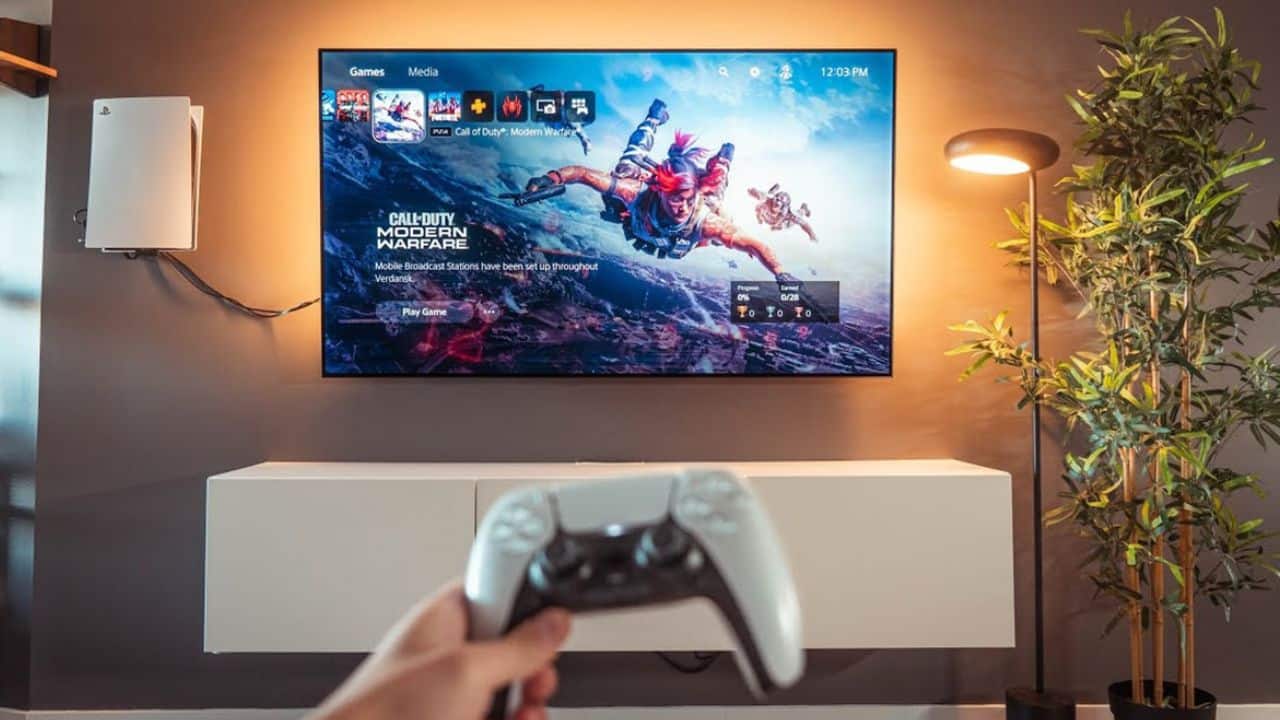
Credit: www.reliant.co.uk
Enhancing Game Mode
Enhancing Game Mode on your TV can make a big difference in your gaming experience. Game Mode is a feature designed to reduce input lag and optimize picture settings. This helps you react faster and see the game more clearly. Follow these tips to enhance Game Mode on your TV.
Reducing Input Lag
Input lag is the delay between pressing a button and seeing the action on the screen. High input lag can ruin gameplay. To reduce input lag, enable Game Mode on your TV. This setting turns off extra processing that can slow down the display. You can usually find Game Mode in the settings menu.
Also, use a wired connection for your console. Wireless connections can add extra delay. Keep your TV firmware updated. Manufacturers often release updates to improve performance.
Dynamic Adjustments
Dynamic adjustments can enhance your gaming visuals. Adjust the brightness and contrast settings for a clearer picture. Game Mode often optimizes these settings, but fine-tuning can help. Check the sharpness level. Too much sharpness can cause visual noise. Too little can make the image look soft.
Color settings also play a role. Some TVs have a color temperature setting. Choose a cooler setting for more vibrant colors. Test different settings to find what looks best for your game.
Audio Settings For Immersive Experience
For an unparalleled gaming experience, optimizing your TV’s audio settings is crucial. Sound quality can make a significant difference in how immersive your gaming sessions feel. Let’s explore some key audio settings to enhance your video game experience.
Sound Modes
Many TVs come with various sound modes designed for different types of content. Here are a few common options:
- Standard: Suitable for regular viewing.
- Movie: Enhances bass and dialogue clarity.
- Music: Provides balanced tones for music playback.
- Game: Prioritizes sound effects and spatial awareness.
For gaming, switching to the Game mode can improve the audio experience by making in-game sounds more distinct. This mode often reduces audio processing time, ensuring sounds are in sync with on-screen actions.
Surround Sound Options
Surround sound systems can further enhance the immersive quality of your games. Here are some popular options:
| Option | Description |
|---|---|
| 5.1 Surround Sound | Includes five speakers and one subwoofer. Creates a 360-degree sound field. |
| 7.1 Surround Sound | Has two additional speakers for even more precise sound placement. |
| Virtual Surround | Simulates surround sound using fewer speakers. Good for smaller spaces. |
For the best results, position the speakers around your room according to the system’s guidelines. This setup helps you hear every footstep, explosion, and environmental cue, making your games more engaging.
Connecting Consoles And Devices
Connecting your gaming console or device to your TV is crucial for a great gaming experience. Proper connections can enhance the visuals and reduce lag. This section will guide you through the best practices for connecting consoles and devices to your TV for optimal gaming performance.
Hdmi Settings
Use HDMI cables for the best quality. Check your TV’s HDMI ports. Some ports support higher resolutions and refresh rates. Use these for gaming. Enable Game Mode on your TV. This reduces input lag. Find this setting in the TV’s menu.
Cable Management
Keep cables organized to avoid clutter. Use cable ties or clips. Label each cable. This makes it easier to identify. Avoid bending cables sharply. This can damage them. Use cable covers to protect them. Keep cables away from power sources. This reduces interference.
Advanced Calibration Techniques
Fine-tuning your TV settings can make a huge difference in your gaming experience. Advanced calibration techniques help you achieve the best picture quality. These techniques ensure colors are accurate, blacks are deep, and the picture is sharp. Let’s explore some methods to get the most out of your TV for video games.
Using Calibration Tools
Calibration tools are essential for achieving accurate TV settings. These tools help adjust brightness, contrast, color, and sharpness.
- Test Patterns: Test patterns help you adjust your TV’s basic settings. These patterns can be found on calibration DVDs or online.
- Colorimeters: A colorimeter measures the colors on your screen. It ensures they are accurate. You can purchase one or use a mobile app.
- Software: Calibration software can guide you through the process. It offers step-by-step instructions for adjusting each setting.
Using these tools, you can achieve a more immersive gaming experience. Your games will look their best, with vibrant colors and sharp details.
Professional Calibration Services
Professional calibration services can take your TV settings to the next level. These services are performed by experts using specialized equipment.
| Service | Description |
|---|---|
| On-Site Calibration | An expert comes to your home. They adjust your TV settings for optimal performance. |
| Remote Calibration | Some services offer remote calibration. They guide you through the process via video call. |
Professional services ensure every setting is perfect. They can adjust settings that are not available in the user menu.
Both calibration tools and professional services can significantly enhance your gaming experience. Whether you choose to do it yourself or hire an expert, advanced calibration techniques can make a big difference.
Maintaining Tv Performance
Keeping your TV in top shape is important for the best gaming experience. Proper care and regular updates can make a significant difference. Here are some tips to maintain your TV’s performance.
Regular Updates
Software updates can improve your TV’s performance. Check for firmware updates regularly. These updates can fix bugs and enhance features. Most modern TVs can update automatically. Enable this feature to stay current.
Manual updates are also possible. Visit the TV manufacturer’s website. Download the latest firmware and follow instructions. This keeps your TV optimized for the latest gaming standards.
Cleaning And Care
Clean your TV screen often. Dust and fingerprints can affect picture quality. Use a microfiber cloth to avoid scratches. Gently wipe the screen with the cloth. Avoid using harsh chemicals. They can damage the screen.
Consider the TV’s ventilation. Overheating can affect performance. Ensure there is enough space around the TV for airflow. Clean the vents regularly to prevent dust buildup. This helps in maintaining the TV’s lifespan.
Proper care extends beyond the screen. Clean the remote control and other accessories. They collect dust and germs over time. Use disinfectant wipes for the remote. Keep the gaming area clean and organized.
| Task | Frequency |
|---|---|
| Check for software updates | Monthly |
| Clean TV screen | Weekly |
| Clean vents | Quarterly |
| Disinfect remote | Weekly |
Troubleshooting Common Issues
Setting up your TV for video games can be tricky. Sometimes, even the best settings can have issues. This section helps you troubleshoot common problems. Whether you have picture issues or audio glitches, we have solutions for you.
Picture Problems
Picture problems can ruin your gaming experience. Here are some common issues and solutions:
- Blurry Images: Ensure your TV is set to Game Mode. This reduces input lag and improves clarity.
- Screen Tearing: Enable V-Sync if your TV supports it. This syncs the frame rate of the game and the TV.
- Dark Scenes: Adjust the Brightness and Contrast settings. Increase them to see details in dark scenes.
- Color Issues: Calibrate your TV’s color settings. Use a calibration tool or follow online guides for your specific TV model.
Audio Glitches
Audio glitches can be equally frustrating. Here are some solutions for common audio issues:
- No Sound: Check if the audio output is set to the correct source. Ensure cables are securely connected.
- Audio Lag: Enable Game Mode on your TV. This reduces audio lag by processing sound faster.
- Distorted Sound: Check your TV’s audio settings. Reset to default or adjust Equalizer settings.
- Low Volume: Increase the volume settings on both your TV and gaming console. Ensure the TV speakers are not muted.
Troubleshooting these common issues can improve your gaming experience. Remember, every TV is different. Experiment with the settings to find what works best for you.

Credit: www.youtube.com
Conclusion And Final Tips
Optimizing your TV settings can significantly enhance your video gaming experience. Proper settings can bring out the best visuals and reduce latency. This section will wrap up our guide and provide some final tips to ensure you get the most out of your gaming sessions.
Quick Recap
First, set your TV to Game Mode. This reduces input lag, making your controls more responsive. Adjust the brightness and contrast to match your room’s lighting. Ensure colors are vibrant but not oversaturated. Calibrate the sharpness to avoid any blurring.
Next, disable unnecessary features like motion smoothing. These can create a lag in fast-paced games. Fine-tune the audio settings for clear sound. Check your TV’s firmware for the latest updates. These can improve performance and fix bugs.
Additional Resources
For more detailed guides, visit your TV manufacturer’s website. They often provide specific tips for gaming. Consider forums like Reddit or AVS Forum. Gamers there share their settings and experiences.
YouTube also has great video tutorials. They can visually guide you through the process. Apps like CalMAN can help with professional calibration. Some modern TVs come with built-in calibration tools.
Remember, the goal is to find what works best for you. Test different settings and see what enhances your gaming experience. Enjoy your games with the best possible visual and audio quality.
Frequently Asked Questions
What Are The Best Tv Settings For Gaming?
Adjust brightness, contrast, and sharpness. Use Game Mode to reduce input lag.
Should I Use Game Mode On My Tv?
Yes, Game Mode reduces input lag, giving a smoother gaming experience.
How Can I Reduce Input Lag On My Tv?
Enable Game Mode. Turn off motion smoothing and other post-processing effects.
What Is The Ideal Brightness Setting For Gaming?
Set brightness to a medium level. Too high or low can strain your eyes.
Is Hdr Good For Video Games?
Yes, HDR enhances colors and contrast, making games look more realistic.
How Should I Set The Tv Contrast For Gaming?
Set contrast to a high level, but not too high. It improves image clarity.
Can Tv Settings Affect Gaming Performance?
Yes, improper settings can cause lag and poor image quality. Adjust settings for a better experience.
Conclusion
Achieving the best TV settings for video games can greatly enhance your experience. Adjust brightness, contrast, and color for optimal visuals. Enable game mode to reduce lag. These simple tweaks help you enjoy smoother gameplay. Experiment with different settings to find what suits you best.
Happy gaming!