
Adobe DC Software is essential for anyone who works with PDFs. It’s a powerful tool for creating, editing, and managing documents.
Adobe DC, short for Adobe Document Cloud, is designed to streamline your document tasks. Whether you need to convert files, sign contracts, or collaborate with others, Adobe DC has you covered. It offers a range of features that make handling PDFs easy and efficient.
With its user-friendly interface, even beginners can quickly learn to navigate the software. In this blog post, we will explore the various functionalities of Adobe DC Software and see how it can simplify your document management process. Stay tuned to discover why it’s a favorite among professionals and casual users alike.
Introduction To Adobe Dc
Adobe DC, also known as Adobe Document Cloud, is a powerful software suite. It provides a range of tools for creating, editing, and managing PDF files. For businesses and individuals, it offers great convenience and efficiency.
What Is Adobe Dc?
Adobe DC is a software suite by Adobe. It combines Acrobat Reader and Acrobat Pro. You can create, edit, sign, and share PDF documents. It also includes cloud storage for easy access.
Why Choose Adobe Dc?
Adobe DC offers many features. It supports editing and converting PDFs. You can add comments, annotations, and signatures. It also integrates with other Adobe products.
Another reason to choose Adobe DC is its security. It protects your documents with encryption. You can control access with passwords. This is important for sensitive information.
Adobe DC is user-friendly. Its interface is simple and easy to navigate. Both beginners and experts find it useful. It also has mobile apps for working on the go.
Installation And Setup
Adobe DC Software is an essential tool for handling PDF files. It offers powerful features for creating, editing, and managing documents. Before you can start using it, you need to install and set it up correctly. This section will guide you through the installation and setup process.
System Requirements
Ensure your computer meets the minimum system requirements. A compatible operating system is crucial. Adobe DC supports Windows 7 or later and macOS X v10.12 or later. Your system should have at least 1.5 GB of free space. An internet connection is also necessary for downloading and activating the software.
Step-by-step Installation Guide
Follow these simple steps to install Adobe DC:
1. Visit the official Adobe website.
2. Click on the “Download” button for Adobe DC.
3. Open the downloaded file to start the installation process.
4. Follow the on-screen instructions to complete the setup.
5. Sign in with your Adobe ID or create one if you don’t have it.
6. Once signed in, the installation will continue automatically.
7. After installation, open Adobe DC and start using it.
By following these steps, you’ll have Adobe DC ready to use. Enjoy the powerful features it offers for your PDF tasks.
Key Features
Adobe Acrobat DC is a powerful software with many useful features. It offers a range of tools to help you manage your PDF documents. Below are some key features of Adobe Acrobat DC.
Document Creation
Adobe Acrobat DC allows you to create PDFs from scratch. You can convert various file formats into PDFs. This includes Word, Excel, PowerPoint, and image files. This makes it easy to share documents in a universal format.
Pdf Editing Tools
Editing PDFs is simple with Adobe Acrobat DC. You can add text, images, and links to your documents. The software also allows for easy rearrangement of pages. You can split or merge PDFs as needed. Adobe’s editing tools are user-friendly and efficient.
E-signature Integration
Adobe Acrobat DC includes e-signature capabilities. This feature allows you to sign documents digitally. You can also request signatures from others. E-signatures make document signing fast and secure. The integration with Adobe Sign ensures legal compliance.
Advanced Tools
Adobe DC Software offers a range of advanced tools designed to enhance productivity and efficiency. These tools cater to various needs, from digitizing documents to compressing files for easy sharing. Let’s explore some of the key features that make Adobe DC a powerful tool for professionals and casual users alike.
Ocr Technology
OCR stands for Optical Character Recognition. This feature allows you to convert scanned documents into editable text. Adobe DC uses advanced OCR technology to recognize and digitize text accurately. You can easily edit, search, and extract information from scanned documents. This saves time and effort, especially when handling large volumes of paperwork.
File Compression
File compression is crucial for managing large documents. Adobe DC provides robust tools to compress PDF files without losing quality. Smaller file sizes make sharing and storing documents easier. This feature is especially useful for emails and cloud storage. Compressed files load faster and take up less space, ensuring smooth workflow and accessibility.
Batch Processing
Batch processing in Adobe DC streamlines repetitive tasks. You can apply the same action to multiple files at once. This includes converting, compressing, or watermarking documents. Batch processing saves time and reduces manual effort. It’s ideal for businesses and individuals who deal with numerous files regularly.
Tips For Enhanced Productivity
Adobe Acrobat DC is a powerful tool for managing and editing PDFs. To get the most out of it, you need to use it efficiently. Here are some tips to help you enhance your productivity with Adobe DC.
Keyboard Shortcuts
Using keyboard shortcuts can save you a lot of time. You can open files faster and perform actions without using the mouse. For example, pressing ‘Ctrl + O’ opens a file. Use ‘Ctrl + S’ to save your work quickly. Memorize the most-used shortcuts to speed up your workflow.
Customization Options
Adobe DC lets you customize your workspace. You can add and remove tools from the toolbar. Arrange them to suit your needs. This helps you access your favorite tools quickly. Go to the ‘View’ menu and select ‘Tools’ to start customizing.
Automating Tasks
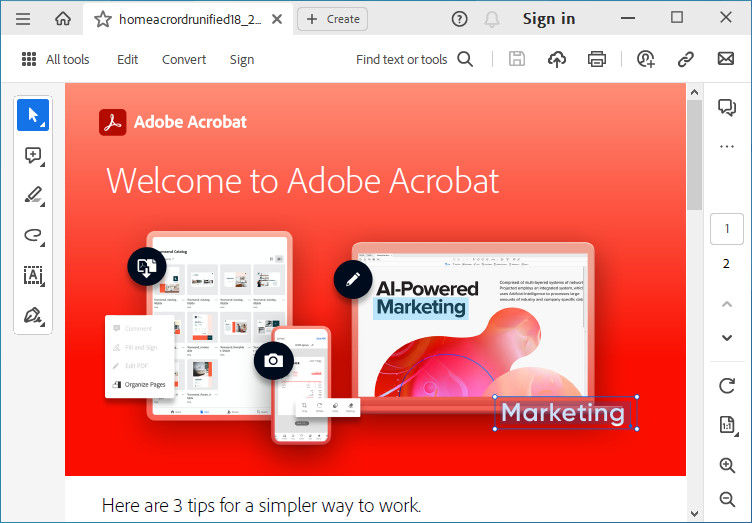
Automating repetitive tasks can save you a lot of time. Use the ‘Actions’ feature in Adobe DC. Create a series of steps that you can apply to multiple files. For example, you can batch process files to add watermarks or signatures. This feature is a real time-saver.
Credit: www.neowin.net
Collaboration Capabilities
Adobe DC Software offers robust collaboration capabilities for teams. It allows users to work together seamlessly on documents. This software helps improve productivity and ensures that everyone stays on the same page. Below are some key features that make collaboration easy and efficient.
Sharing Documents
With Adobe DC, sharing documents is simple. You can send files via email or share a link. This link allows others to view or edit the document. You can also set permissions to control who can access the file. This ensures that sensitive information is kept secure.
Real-time Comments
Real-time comments make collaboration quick and efficient. Team members can leave comments directly on the document. These comments appear instantly, allowing for immediate feedback. This feature helps to speed up the review process and ensures that everyone’s input is considered.
Version Control
Version control is a crucial feature for collaboration. Adobe DC keeps track of all changes made to a document. It allows you to revert to previous versions if needed. This ensures that no important information is lost. It also helps to keep track of who made which changes, making it easier to manage team contributions.
Security Features
Adobe Acrobat DC offers top-notch security features to protect your documents. These features ensure your sensitive information stays safe. Let’s explore some of the key security aspects of Adobe DC.
Encryption Options
Adobe DC provides various encryption options. These options help safeguard your documents from unauthorized access.
- 128-bit AES encryption
- 256-bit AES encryption
You can choose the level of encryption based on your security needs. Strong encryption ensures your data is protected during storage and transfer.
Password Protection
Adding a password protection to your PDFs is simple with Adobe DC. This feature ensures only authorized users can open and view your documents.
- Open your PDF in Adobe DC.
- Go to the “File” menu and select “Properties”.
- Click on the “Security” tab.
- Select “Password Security” and set your password.
You can also set permissions to control what others can do with your document. For example, you can restrict printing or editing.
Secure Sharing
Adobe DC allows for secure sharing of your documents. You can share PDFs while ensuring they remain protected.
| Method | Feature |
|---|---|
| Share PDFs directly via email with encryption. | |
| Adobe Cloud | Store and share documents securely via Adobe Cloud. |
With these sharing options, you can ensure your documents are safe and accessible only to intended recipients.

Credit: helpx.adobe.com
Integration With Other Tools
Adobe DC software is highly versatile and powerful. One of its key strengths is its seamless integration with other tools. This capability enhances productivity and simplifies workflows. Below are some ways Adobe DC integrates with other tools.
Microsoft Office
Adobe DC integrates effortlessly with Microsoft Office applications. This integration allows users to convert Word, Excel, and PowerPoint files to PDF with a single click. It also supports editing PDF documents directly within these Office applications. The integration ensures that the formatting and layout remain intact during the conversion process.
- Convert Word, Excel, and PowerPoint files to PDF.
- Edit PDF documents within Office applications.
- Maintain original formatting and layout.
Cloud Storage Services
Adobe DC works well with various cloud storage services. This feature ensures that your documents are easily accessible from anywhere. It supports popular services like Google Drive, Dropbox, and OneDrive.
| Cloud Service | Integration Features |
|---|---|
| Google Drive | Access and save PDFs directly. |
| Dropbox | Sync PDF files with ease. |
| OneDrive | Seamless file management. |
Third-party Applications
Adobe DC also integrates with numerous third-party applications. This expands its functionality beyond basic PDF management. Integrations with e-signature tools, project management software, and CRM systems are available.
- E-signature tools for secure signing.
- Project management software for streamlined workflows.
- CRM systems for efficient document handling.
These integrations make Adobe DC an all-in-one solution for various business needs.
Troubleshooting Common Issues
Adobe DC software offers powerful tools for document management and editing. Sometimes, users encounter issues that hinder their productivity. Troubleshooting common issues can help users get back on track quickly. Here, we will address some frequent problems and provide solutions.
Installation Errors
Users may face installation errors with Adobe DC software. Common errors include insufficient disk space and incompatible system requirements. To resolve these, ensure your system meets the software’s requirements. Clear up disk space by removing unnecessary files. Disable any antivirus software temporarily during installation. This can help avoid conflicts.
Performance Optimization
Adobe DC might run slow on some systems. This affects user experience. To optimize performance, close other applications running in the background. Update Adobe DC to the latest version. This often includes performance improvements. Adjust the software settings to reduce resource usage. For instance, lower the resolution of documents when not needed.
Customer Support
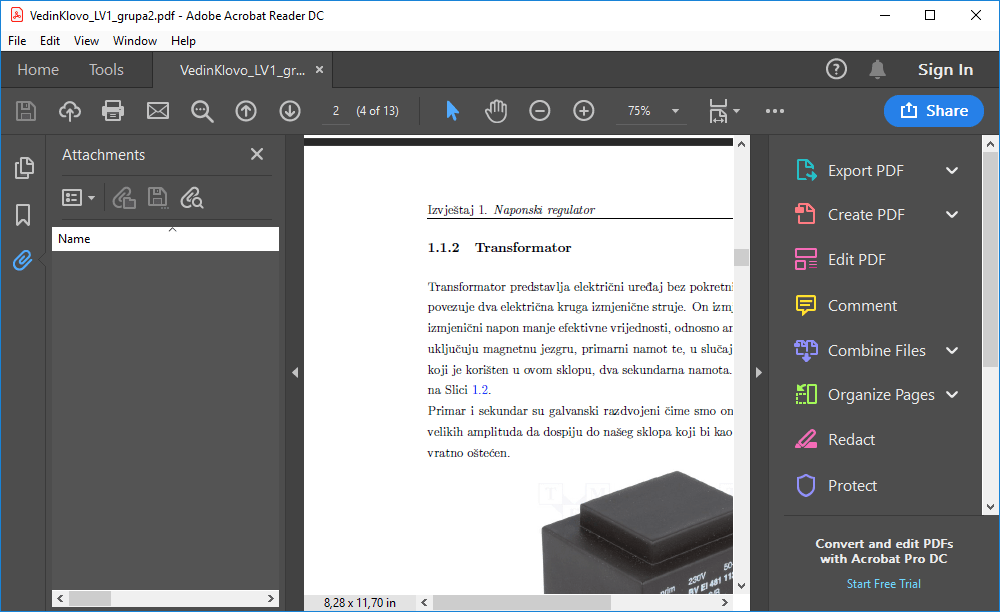
If issues persist, Adobe provides customer support. Users can access help through the Adobe website. There, they can find FAQs and troubleshooting guides. For complex problems, contact Adobe support directly. They offer chat, phone, and email support. Having your software version and error details ready can speed up the process.
Credit: adobe-acrobat-reader.sooftware.com
Frequently Asked Questions
What Is Adobe Dc Software Used For?
Adobe DC (Document Cloud) software is used for creating, editing, signing, and sharing PDF documents.
How Do I Edit A Pdf In Adobe Dc?
To edit a PDF, open it in Adobe DC, then use the “Edit PDF” tool to make changes.
Is Adobe Dc Free To Use?
Adobe DC offers a free version with basic features, but advanced tools require a subscription.
Can I Sign Documents With Adobe Dc?
Yes, Adobe DC allows you to sign documents electronically and securely using its e-signature feature.
Conclusion
Adobe DC Software offers numerous benefits for users. It simplifies document management. Editing and sharing PDFs become easy tasks. The user-friendly interface caters to all skill levels. Its features save time and enhance productivity. Adobe DC is a reliable choice for both professionals and students.
Give it a try and experience its advantages firsthand.